

When should you use live recording?
Use this mode when you want to watch the text appear on screen as it’s captured. It fits situations like these:- You want to check something you missed during a meeting, right then and there
- You want to follow a foreign-language conversation through real-time translation
How to start live recording
Where you start depends on your platform.- Web and desktop app: On the note list screen, click [Start realtime recording]. A new note opens, ready to record.
- Mobile app: On the new note screen, select the [Real-time] mode and tap [Start realtime recording]. Offline recording is selected by default.
Enter a note title and participants
If you don’t set a title yourself, Tiro listens to the conversation and creates one that fits the topic. Add the names and emails of the people with you in the [Participants] field. This helps Tiro recognize their names more reliably, and makes it easier to invite them to the note or search by participant once recording is done. See Conversation participants for details.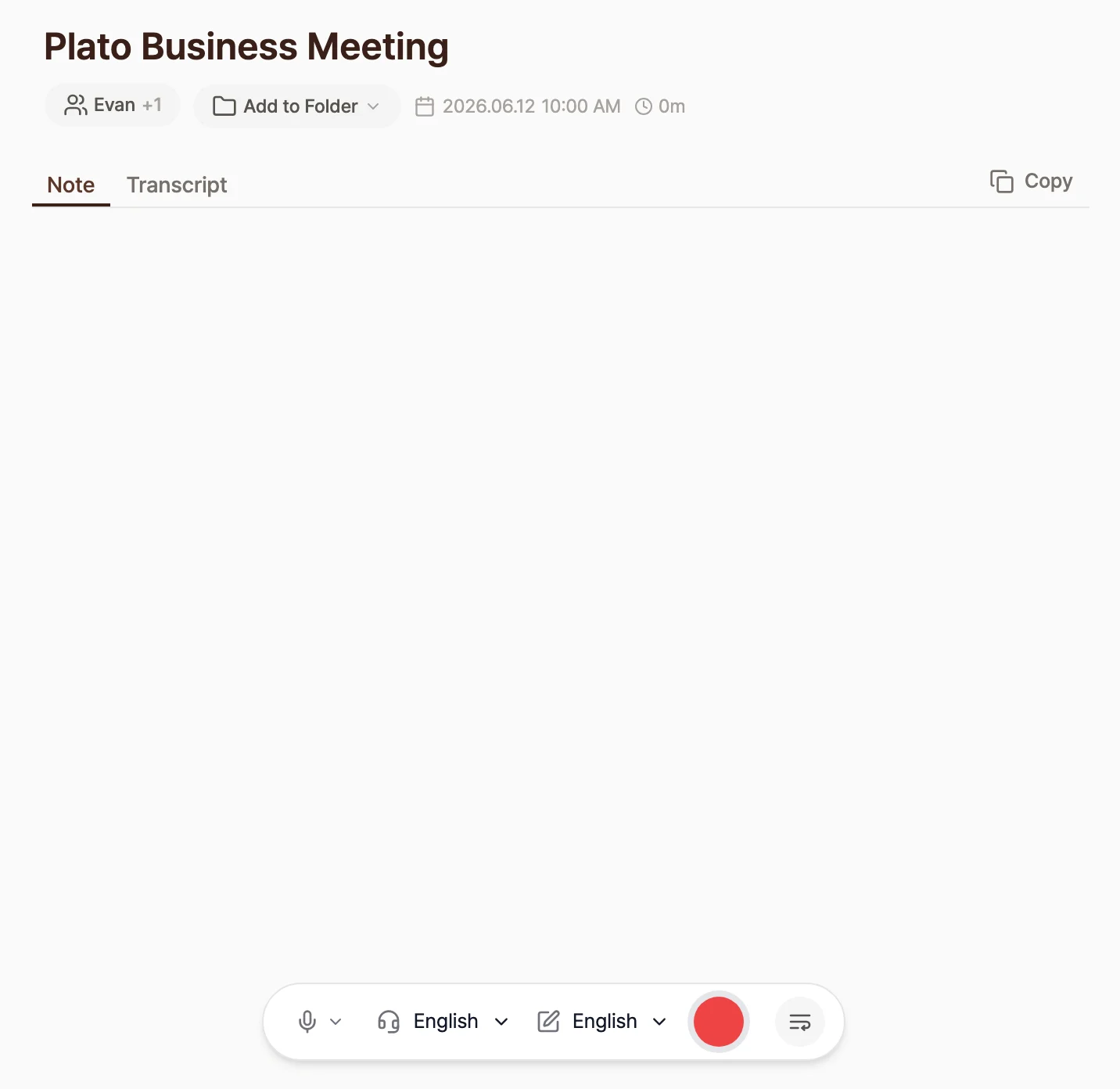
Add context
Context is a hint that helps Tiro capture speech more reliably. Tell it about the setting, proper nouns, and people’s names ahead of time in the [Context] field, and both the transcript and the summary improve noticeably.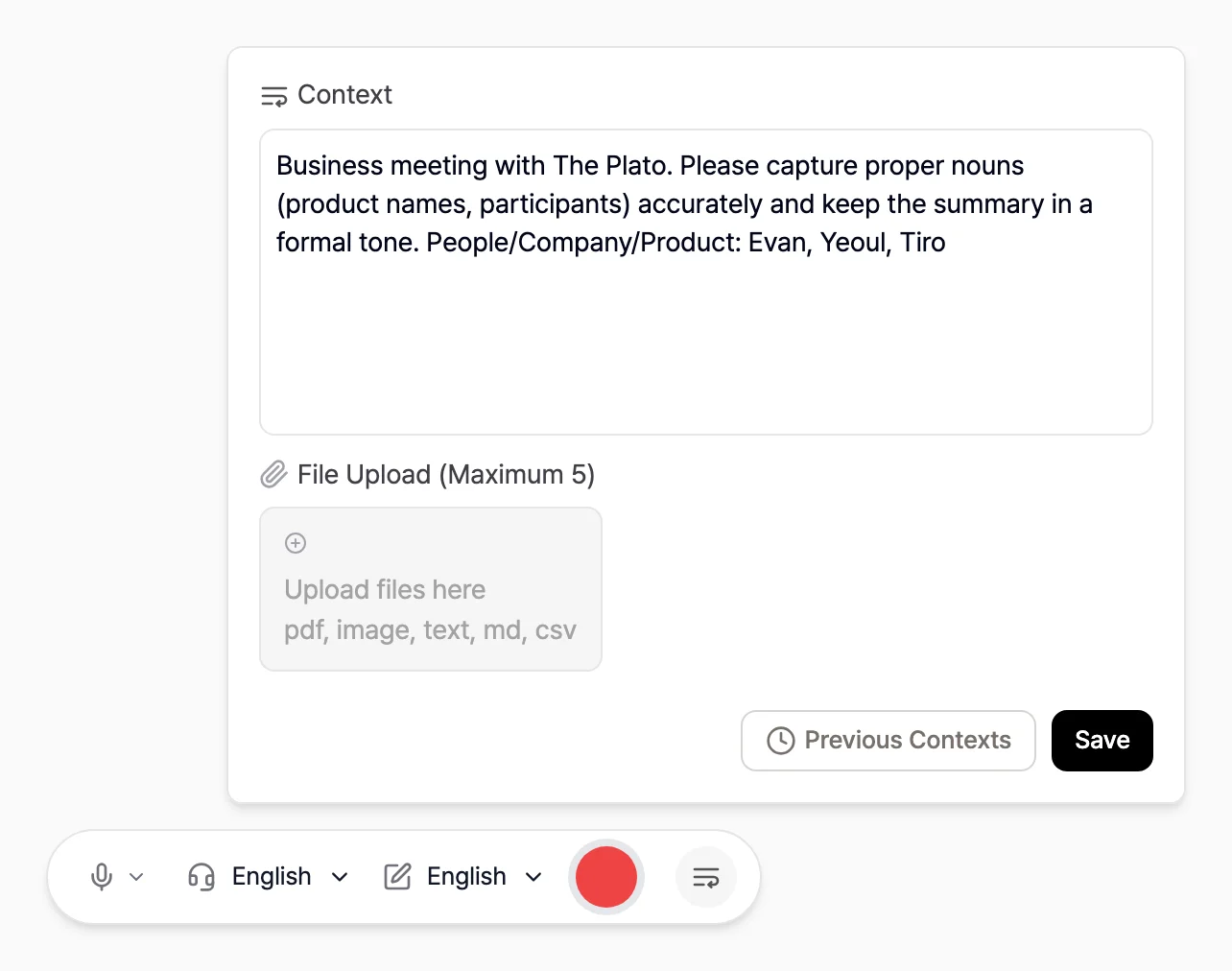
e.g. A business meeting with [The Plato]. Capture proper nouns like product names and attendees accurately, and write the summary in a formal tone. People / companies / products: [John Doe], [Tiro]The Context page covers how to write good context in more depth.
Set the languages
You can choose two languages separately.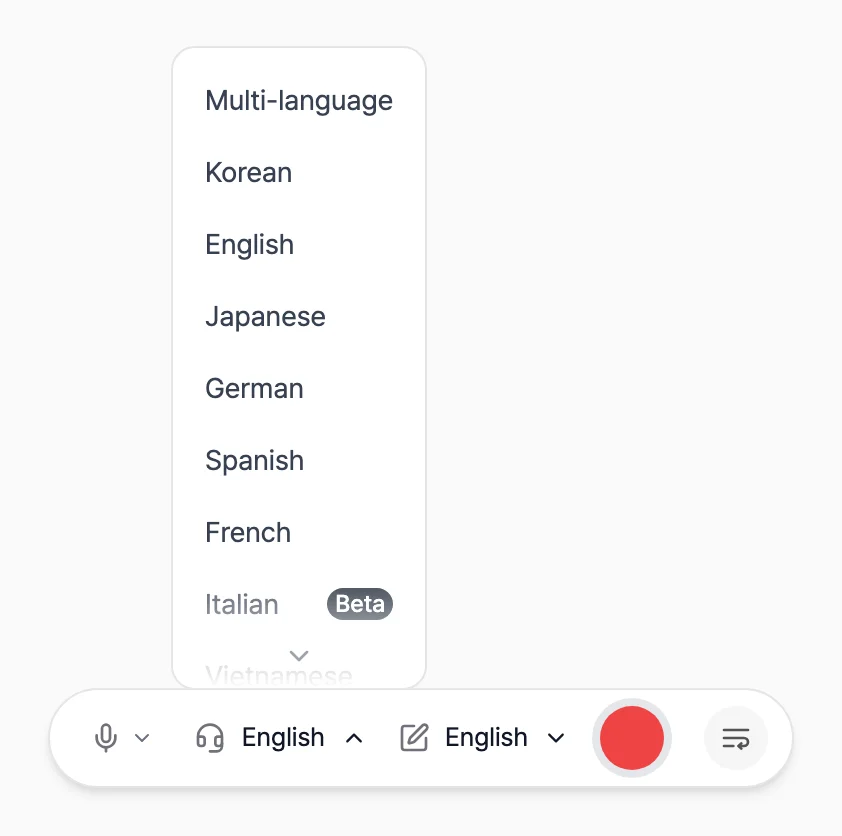
- [Listen In]: the language actually spoken in the conversation. This is what speech recognition listens for.
- [Write In]: the language your transcript and summary are written in.
What you can do while recording
- Pause and resume: Press the waveform button to pause; press it again to keep recording.
- Add or edit context: You can enter or change context mid-recording, and it takes effect from the next moment on. Drop in proper nouns or key terms as they come up in the conversation.
- Check and fix the original: Open the raw text with [View script] and click any misrecognized part to fix it on the spot.
Using real-time translation
Set the [Listen In] and [Write In] languages differently and real-time translation starts with no extra steps. For example, set Listen In to English and Write In to Korean, and English speech shows up translated into Korean.- Translated text appears almost as soon as someone speaks.
- Once a paragraph is complete, turn on the [Translation] toggle to see each paragraph’s original text alongside its translation.
- The mobile app works the same way. In the language selector, pick your [Listen In] and [Write In] languages.
After you finish recording
When you end a recording, Tiro creates three things.- One-page document: A summary that structures the whole conversation by key topic, organized by theme rather than in plain time order.
- Note: The chronological summary generated live as you speak.
- Transcript: A verbatim record of the whole conversation. Filler like “um” and “uh” and small grammar slips are smoothed out while the meaning stays intact.
When another recording mode works better
- Conversations that mix languages: Live recognition has to detect the language and transcribe it at the same time, in a split second, so accuracy can drop when a conversation moves between two or more languages. Offline recording or audio file upload works better here.
- Unstable network: Live recording depends on your internet connection. Where the connection might drop, offline recording is the safer choice.
Frequently asked questions
Is live recording less accurate than offline recording?
No. In a typical single-language conversation, both use the same speech recognition engine, so they’re equally accurate. The real difference is stability, not accuracy. Live recording depends on your network, so if you don’t need to watch the screen as you go, offline recording is the better pick.How long can a single note record?
Paid plans record up to 5 hours per note. During the free trial you can record up to 2 hours, but anything past 60 minutes shows as locked and unlocks once you start a paid plan. Without a subscription, you can record up to 60 minutes per note.Can Tiro separate speakers?
Yes, speaker separation is available on Pro and above. During live recording, speakers aren’t split apart in real time, but when you end the recording Tiro re-analyzes the full audio automatically and tags speakers in the transcript. See Speaker diarization for how it works.The waveform isn’t moving while we’re talking
The waveform moves in proportion to how loud the incoming sound is. If it’s frozen, check that the right microphone input is selected. On the desktop app, to also record system audio (the sound playing from your device), the [System Sound] input in the recording controls needs to be set above 0%. See Recording system audio for details.How many languages does recording support?
Tiro supports 15 languages plus the [Multilingual] option: Korean, English, Japanese, Chinese, Spanish, French, German, Italian, Russian, Vietnamese, Indonesian, Thai, Malay, Swedish, and Hindi. You can mix and match the Listen In and Write In languages freely.Related pages: Offline recording · Context · Recording system audio