

What you can do
You keep the convenience of sharing a note by link, while keeping the contents from leaking outside your company.- Manage and revoke share links: an admin sees every link shared across the workspace in one place and revokes any of them on the spot.
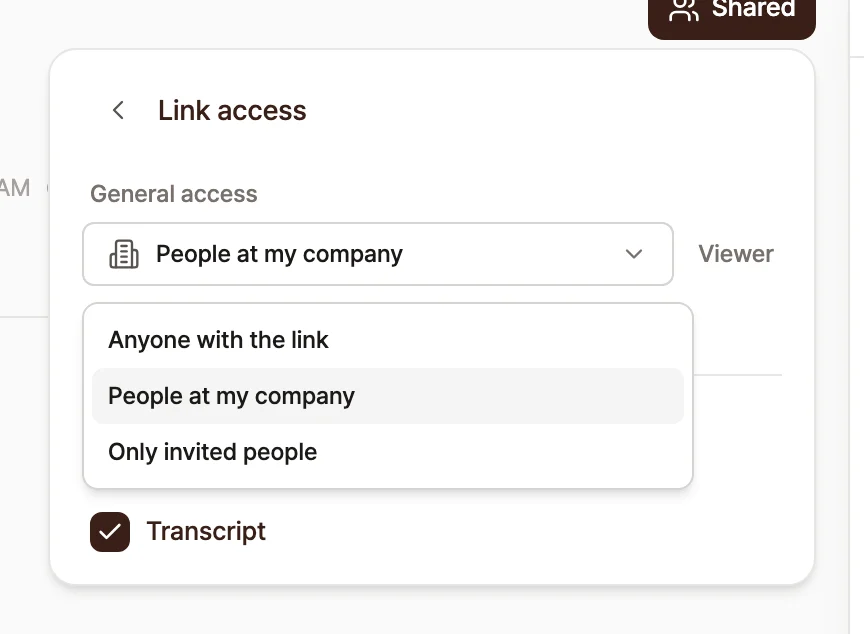
- Three share scopes: share a link as [Anyone with link], [People at my company], or [Only invited people]. Available in every workspace.
- Workspace share policy : an admin sets the maximum share scope, the longest link expiry, and the allowed company domains for the links members create.
Choose a share scope when you share a note
Open the share menu on a note, and the “Share note” screen appears. The current scope of the link shows at the bottom of the “Access” section. Click that row to go to the “Link access” screen.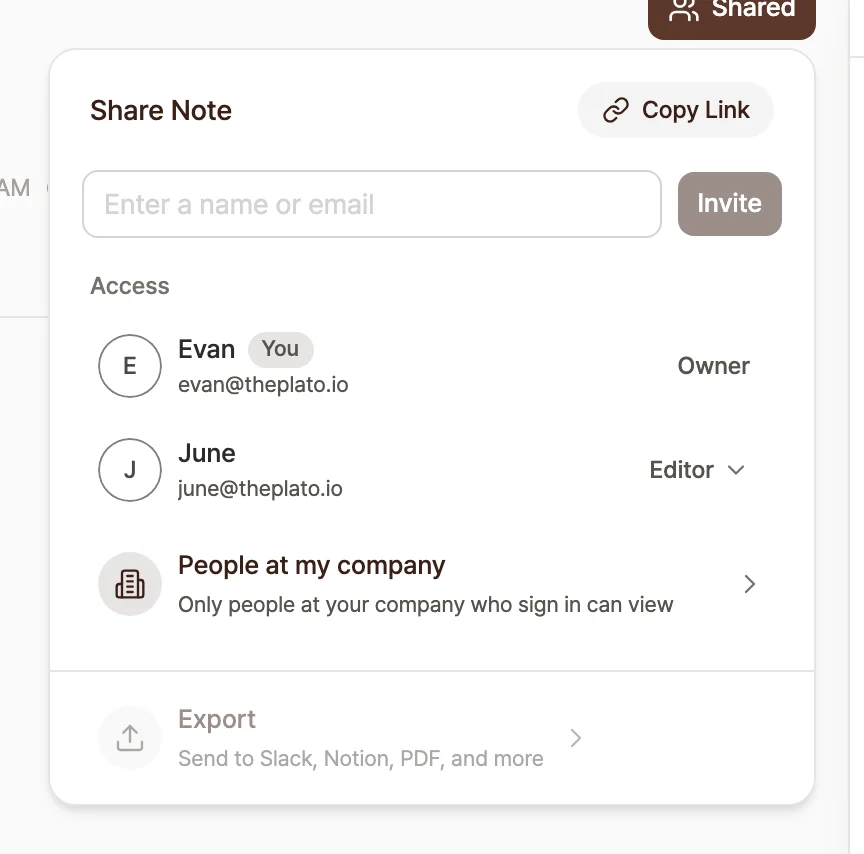
- [Anyone with link]: anyone who receives the link can view it, read-only.
- [People at my company]: only members signed in with a company account can view it. By default, Tiro treats the account domain of whoever shared the note as the company domain, and public mail domains like Gmail never become a company domain automatically.
- [Only invited people]: only people invited to the note can open it.
Open a link someone shared with you
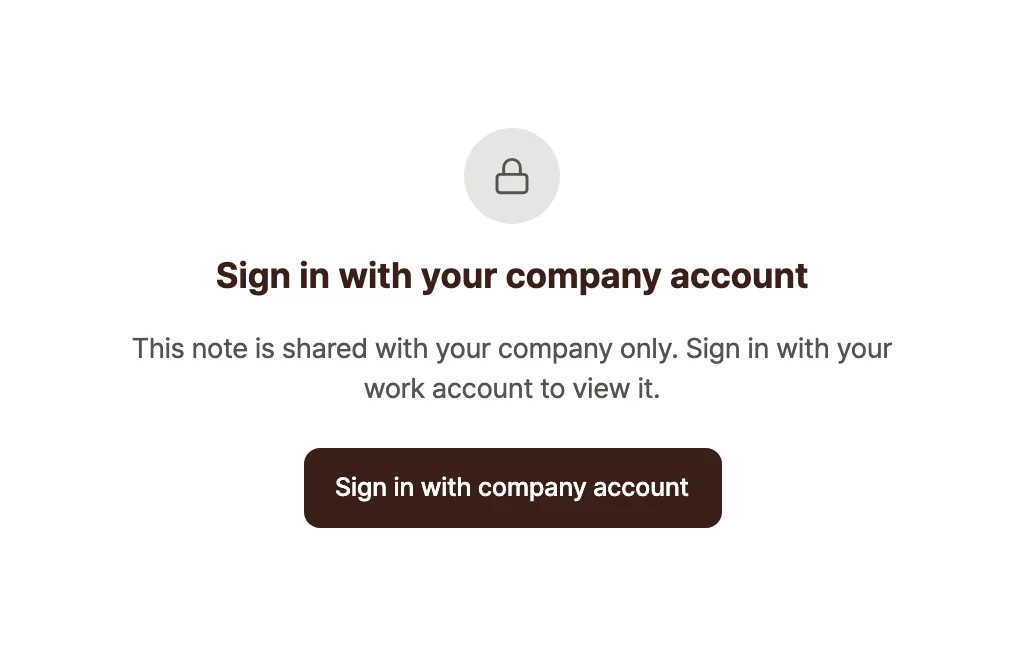
A note link shared with the [People at my company] scope, received over a Slack DM or email, opens right away once you sign in with your company account. You do not need to sign up for Tiro separately.- Click the link, and the “Sign in with your company account” screen appears. If you are already signed in with your company account, the note opens right away.
- Click [Sign in with company account] and sign in with your company Google account.
- Once you finish signing in, you return to the note automatically and can read it.
Change the default scope for new links
You can set the default scope for the share links you create from now on. Under [Settings] → General, in the “Share settings” section, pick the scope you want for the [Default link share scope] option, and every share link you create after that uses it by default. Even if you set a default wider than the workspace cap, sharing still limits it to the cap.Review and revoke shared links
A workspace admin reviews every active link in one place and revokes any of them right away. Under [Settings] → [Workspace], the “Shared links” section lists the currently shared links, along with each note’s title, share scope, and share date.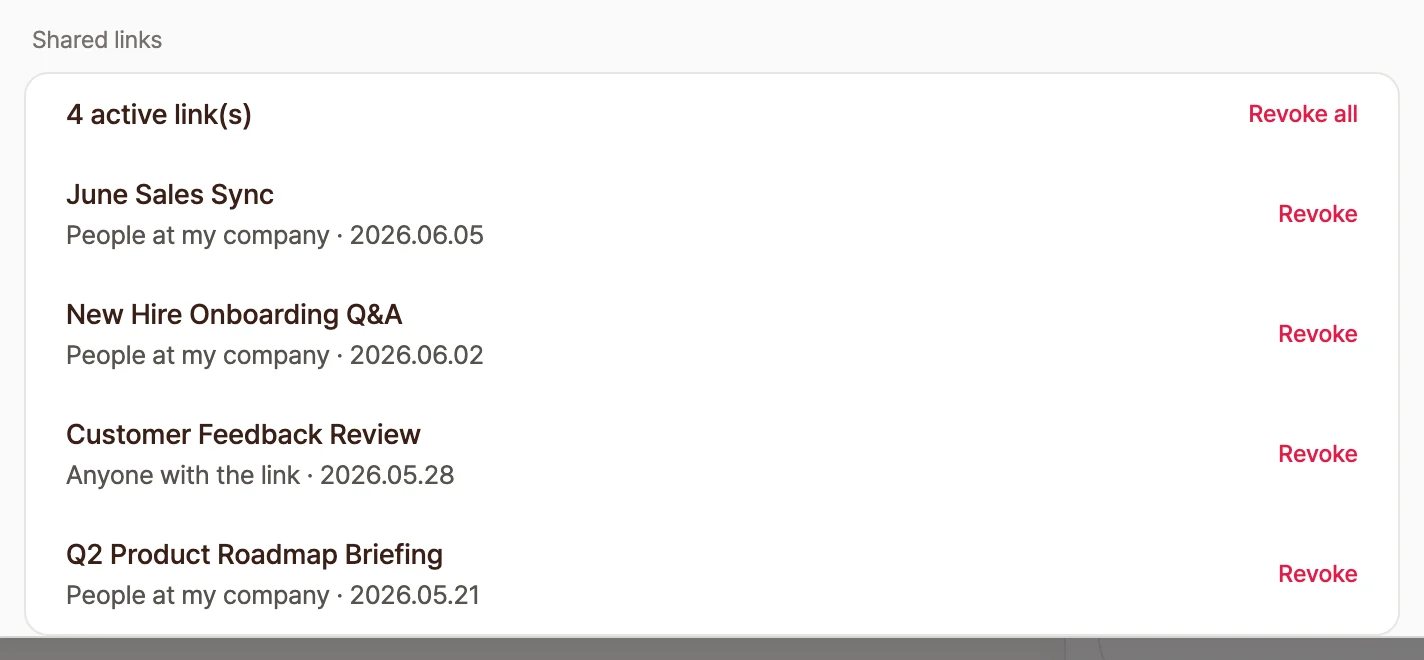
- To pull back one link, click the [Revoke] button on its row.
- To pull back every link at once, click the [Revoke all] button at the top.
Manage workspace share policy
This setting shows only to workspace admins. As an admin, you set the share scope, expiry, and allowed company domains for the links your members create, at the workspace level. Under [Settings] → [Workspace], set the three policies in the “Share policy” section.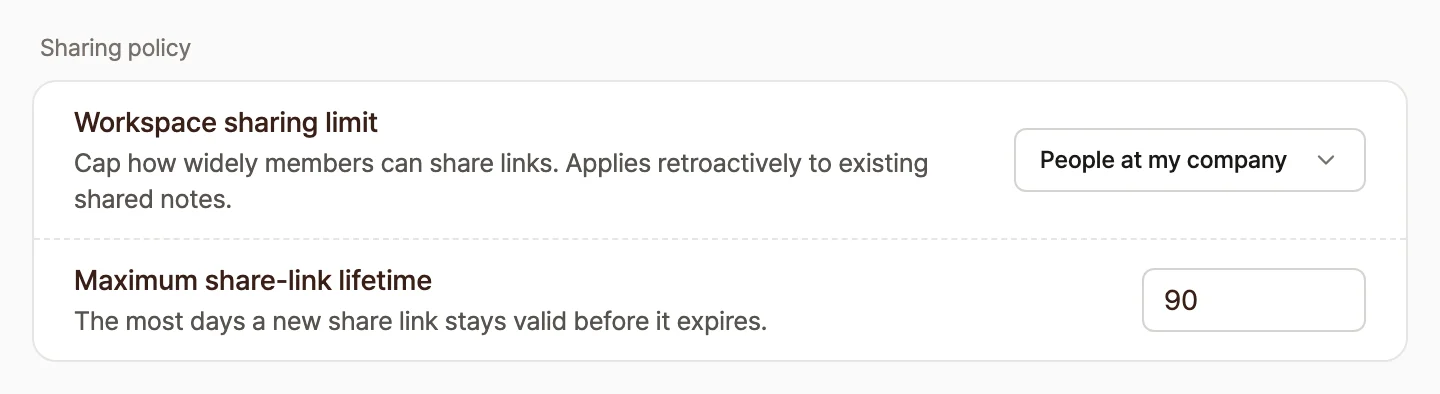
Frequently asked questions
What happens to links I shared before setting a policy?
They are protected by the share scope cap automatically, with nothing for you to touch. When the cap is set to [People at my company], a note you shared earlier as [Anyone with link] becomes viewable only by people at your company from that point on. The policy applies at the moment someone opens the note, so there is no need to recreate the link, and the address stays the same. The maximum link expiry works differently, though. Expiry applies to share links created after you set the policy, and links created before never expire.How do I show a note to someone outside my company, like an external partner?
You can, by inviting them to the note directly. A share link opens only for allowed company domain accounts under the workspace policy, but if you enter their Tiro account email in the invite field of the “Share note” popup, that external person can view the note by name. There is no way to bypass the workspace visibility limit with anonymous link sharing. Only named invites, where it is clear who is viewing, are allowed.Can someone who receives the link view it without a Tiro account?
Yes, they can, even if they have never signed up for Tiro. Opening a link shared as [People at my company] brings up the “Sign in with your company account” screen, and clicking [Sign in with company account] to sign in with a company Google account takes them straight to the note. The email domain of the account they sign in with has to match an allowed company domain for the note to open.I opened a “People at my company” link but it says the note cannot be found.
It is usually one of three things. Check them in order.- Check your account: if you are signed in with a personal account instead of your company account, the note shows as missing for security. Sign in again with your company domain email account.
- Check link expiry: if your workspace has set a maximum link expiry, an expired link is blocked with the same screen.
- Check whether it was revoked: an admin may have revoked the link.
Can I block a link I shared by mistake right away?
Yes. When a workspace admin clicks the [Revoke] button for the note in the “Shared links” list in workspace settings, the link is invalidated immediately. In a hurry, ask your admin to revoke it along with the note title.Why can’t I see the share settings in the mobile app?
The link sharing security options are on the web today. They are rolling out to the desktop and mobile apps next. Until then, open Tiro in a web browser to manage your share settings.Related pages: Sharing · Folders · Privacy and security