

Turn a file into a note
Open file upload
Where you start depends on your platform.
- Web and desktop app: In a new note, choose the [File Upload] menu.
- Mobile app: On the new note screen, choose the [Audio File] mode.
Select a file or drag and drop
Click [Select File] to pick a file, or drag one into the upload area. You can also paste a Google Drive link to upload. See Upload from a Google Drive link below.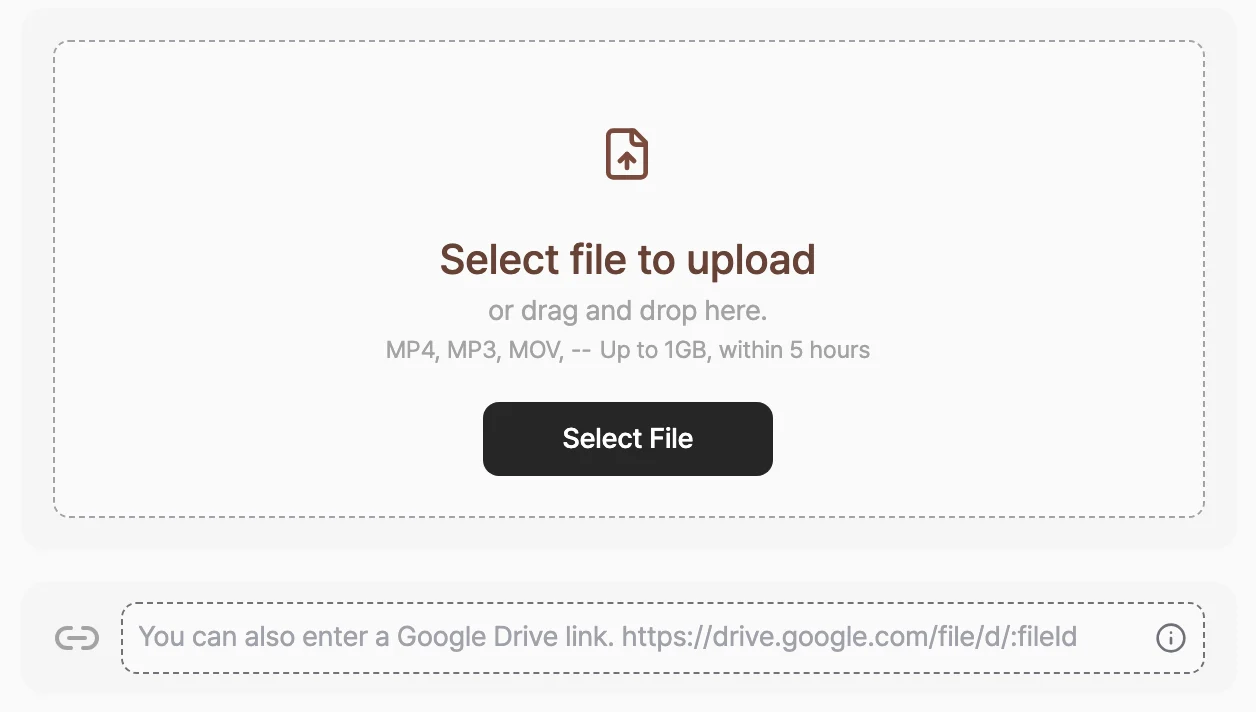
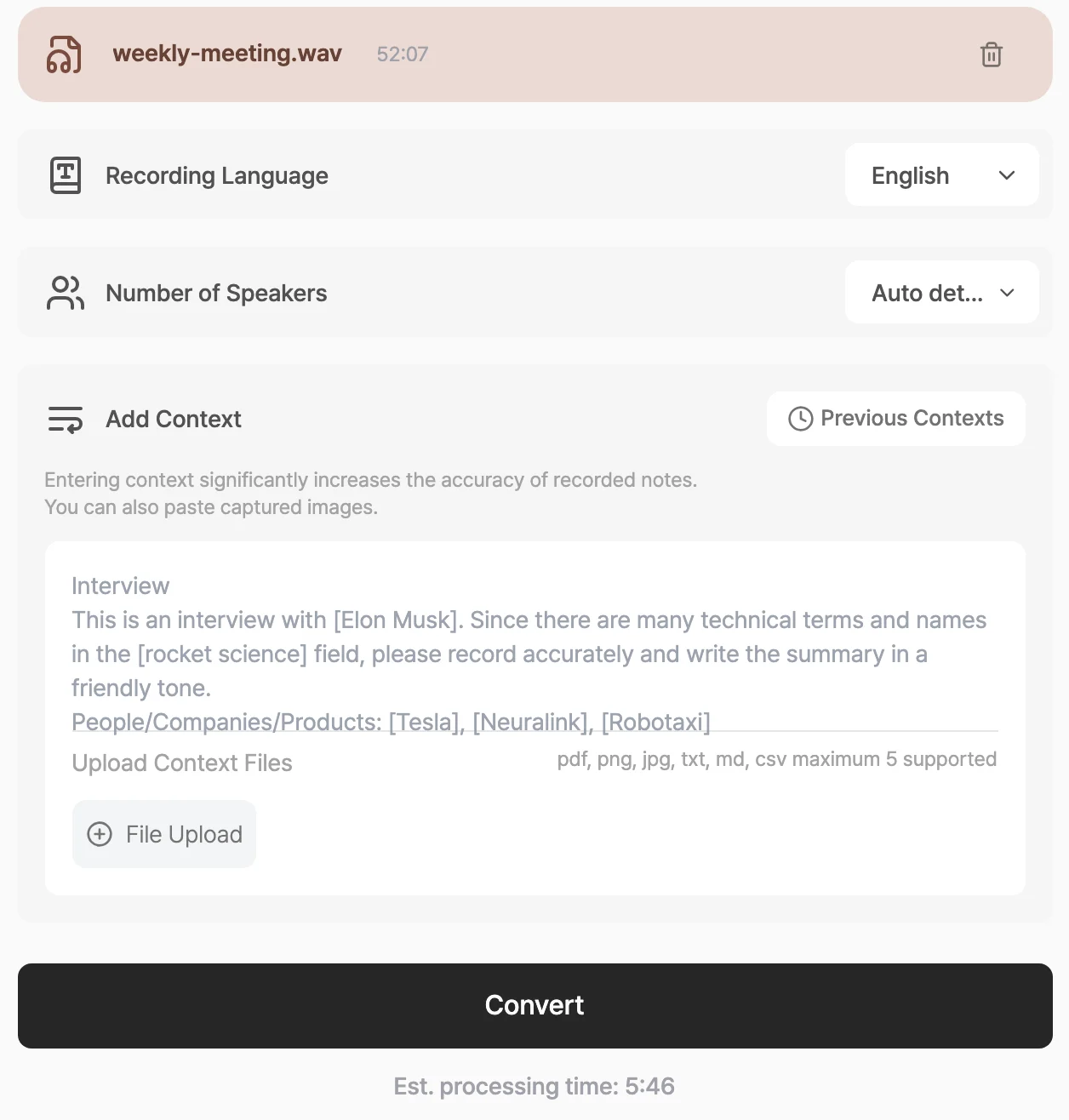
Set the recording language, speaker count, and context
- [Recording Language]: The language your transcript and summary are written in. Tiro detects the spoken language automatically.
- [Number of Speakers]: Enter the number of people in the conversation if you know it, or leave it on auto-detect.
- Context: Tell Tiro about the situation and any proper nouns to improve conversion accuracy.
Supported formats and limits
- File formats: MP3, MP4, M4A, AAC, WAV, FLAC, OGG, OPUS, WebM, MOV, MP2, PCM
- Size and length: up to 1GB and 5 hours per file
- You can upload one file at a time.
Upload from a Google Drive link
Paste a link in the formhttps://drive.google.com/file/d/... into the field, and Tiro fetches the file and converts it.
- Link upload currently supports Google Drive only.
- The file’s sharing permission must be open so the link can be accessed. If the permission is closed, Tiro can’t fetch it.
When an upload fails
- A file over 1GB or longer than 5 hours won’t upload. Split the file or convert it to a more compressed format (MP3, M4A) and try again.
- If you see a message that the format isn’t supported, check the list above and convert to MP3 if you can.
- If uploads keep failing on a corporate network, a firewall may be blocking them. Connect to a different network, such as a mobile hotspot, and try again.
Frequently asked questions
Do video files get converted?
Yes. When you upload a video file like MP4 or MOV, Tiro extracts the audio and converts it to text.Does it separate speakers?
Yes, speaker separation is available on the Pro plan and above. If you know the number of speakers, enter it in the [Number of Speakers] field for better results. For details, see Speaker Diarization.How long does conversion take?
It depends on the file length. When you select a file, the screen shows the estimated processing time, and during conversion you see the progress stage by stage.Can I upload call recording files?
Yes. Any recording converts as long as it meets the format and size requirements. If you’re an Android (Galaxy) user, Call Recording, which automatically detects and converts your call recordings, is more convenient.Related pages: Call Recording · Speaker Diarization · Manage Audio Files